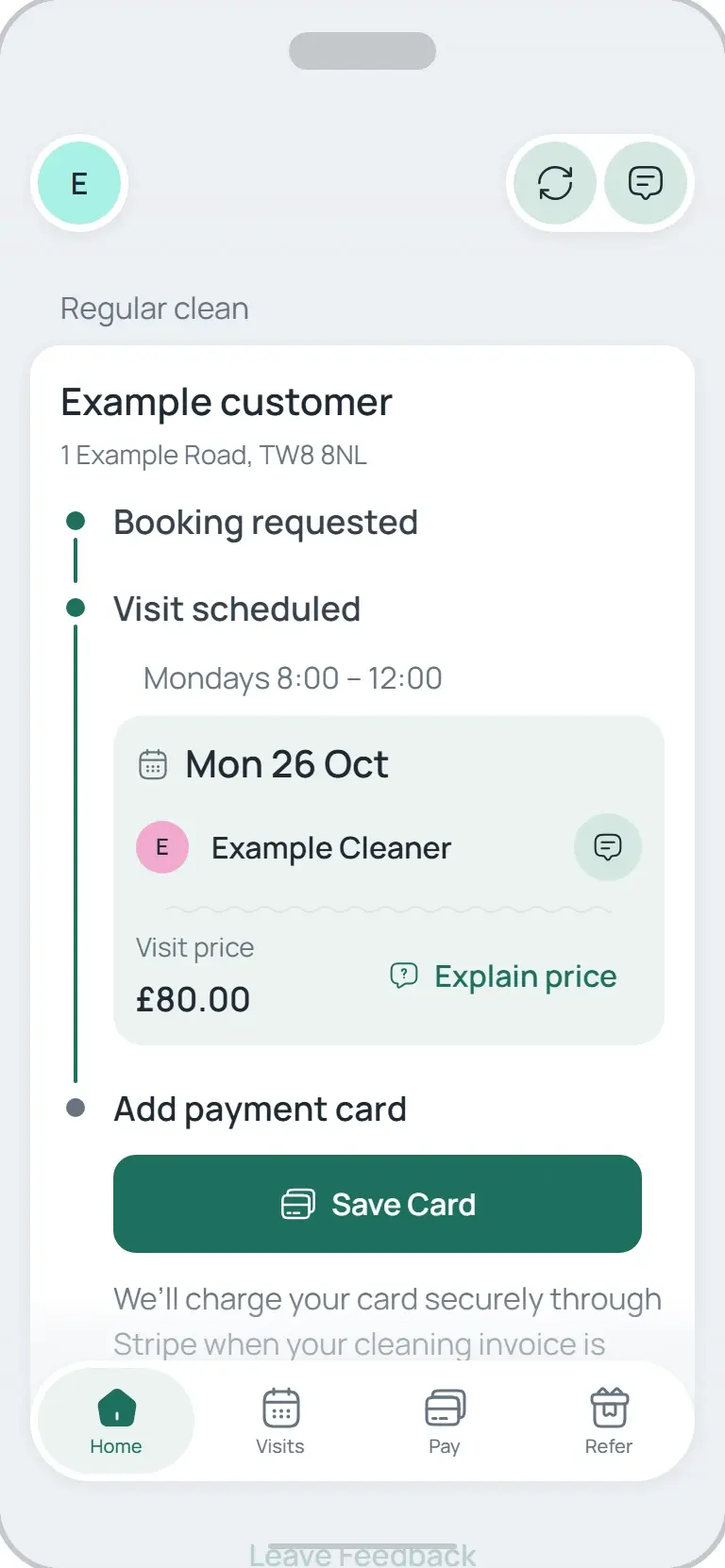
Step 1. Open your booking on Home
Open the Facility Cleaners app and sign in. Tap Home in the bottom menu. Find your cleaning booking, then tap Save Card under Add payment card.
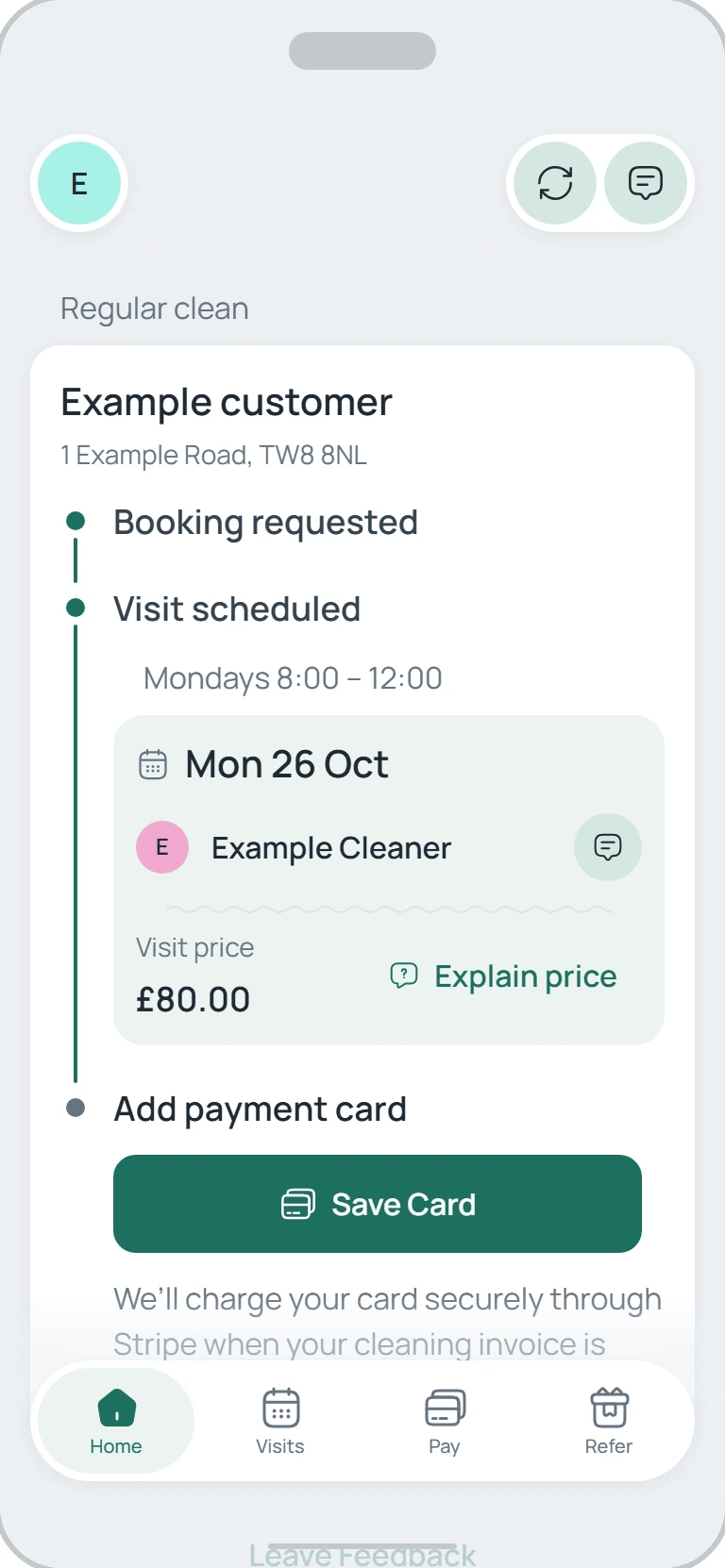
Step 2. Tap Save card on the payment screen
On the Add card details screen, review the information about automatic payments when your cleaning invoices are due. Tap the green Save card button to open the payment form.
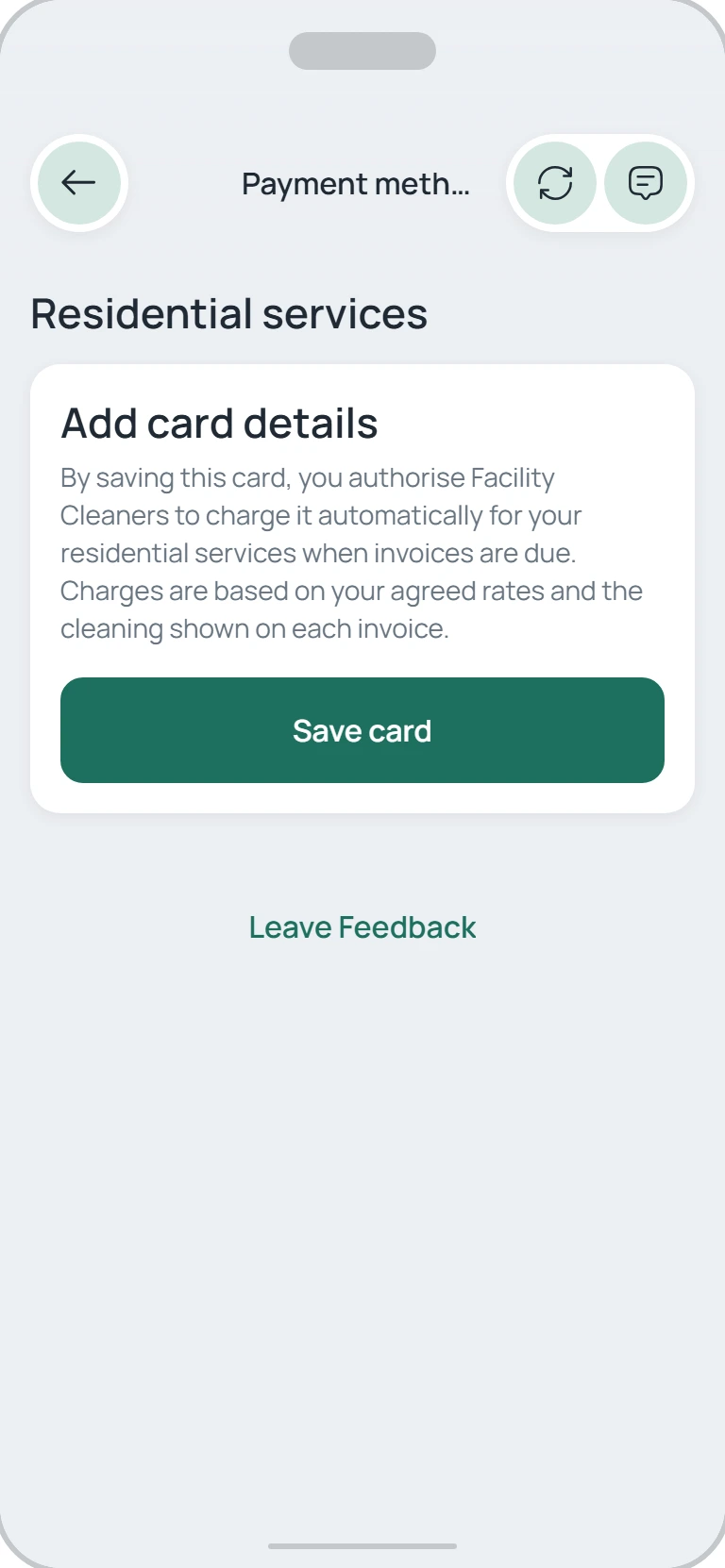
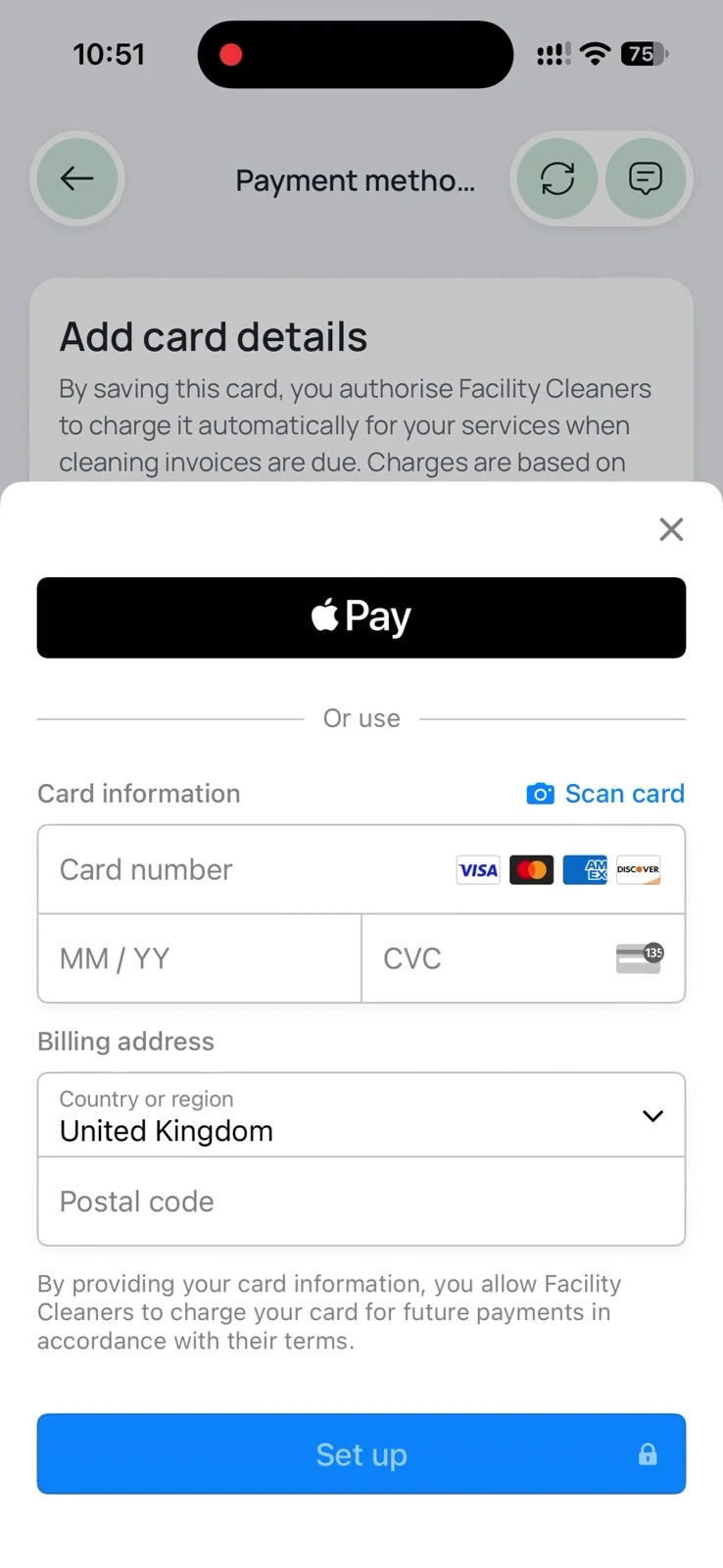
Step 3. Choose Apple Pay or enter your card details
Tap Apple Pay if it appears and you want to use it. To add a card manually, enter your card number, expiry date, CVC and the billing details requested, then tap Set up. If you enter your card manually, continue to step 5.
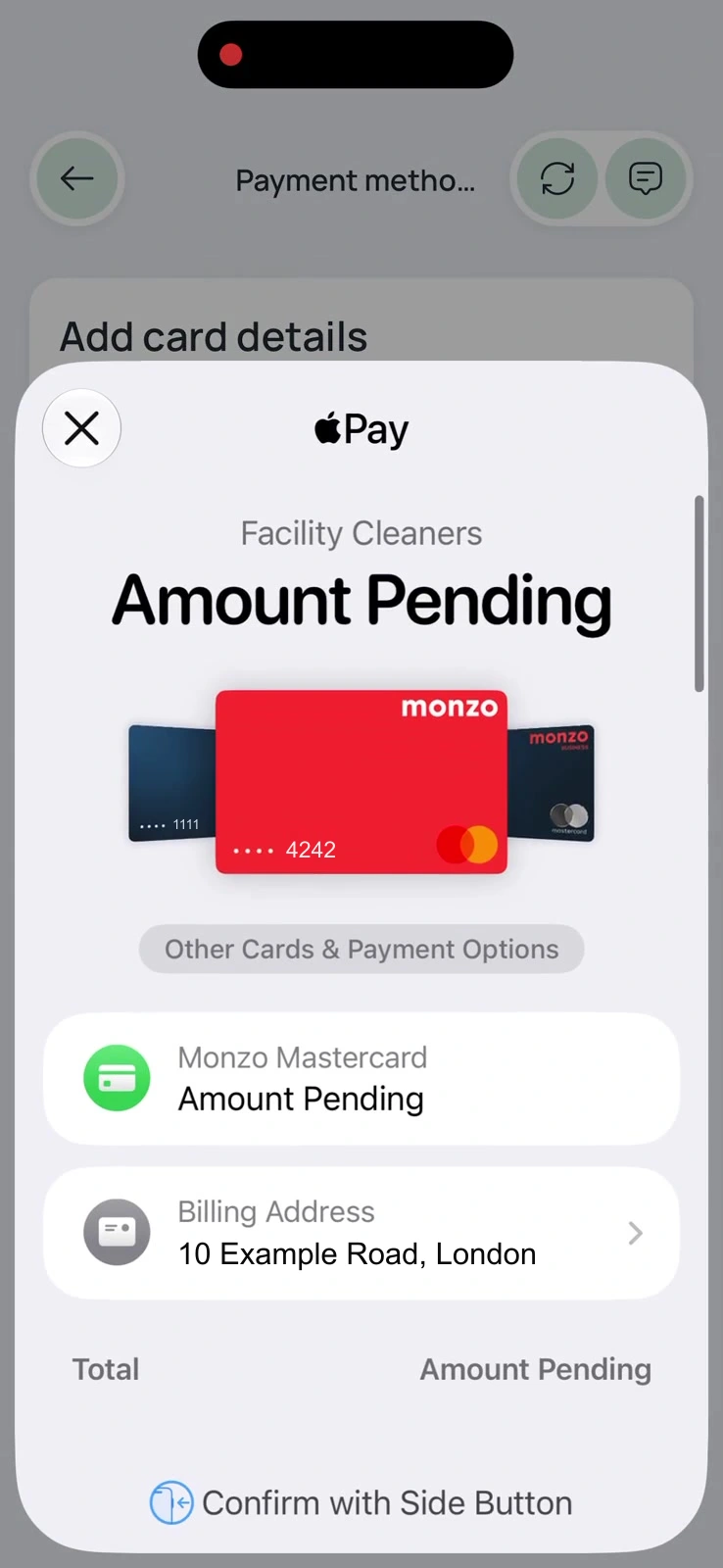
Step 4. Confirm in Apple Pay
If you chose Apple Pay, check the selected card in the Apple Pay window. Follow the iPhone prompt to Confirm with Side Button.
Step 5. Wait for the app to finish confirming your card
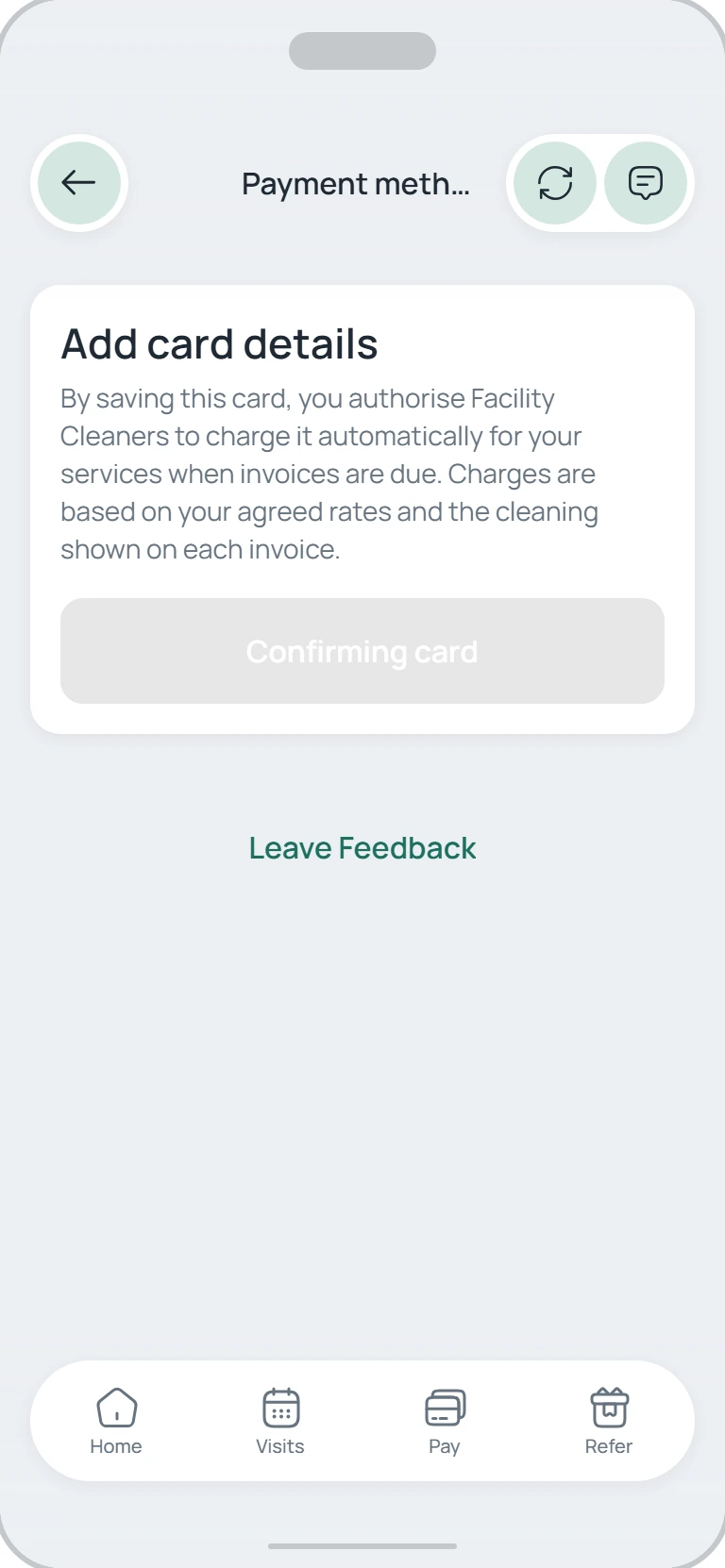
When the app shows Confirming card, keep it open until it returns you to Home.
Step 6. Check that your card was saved
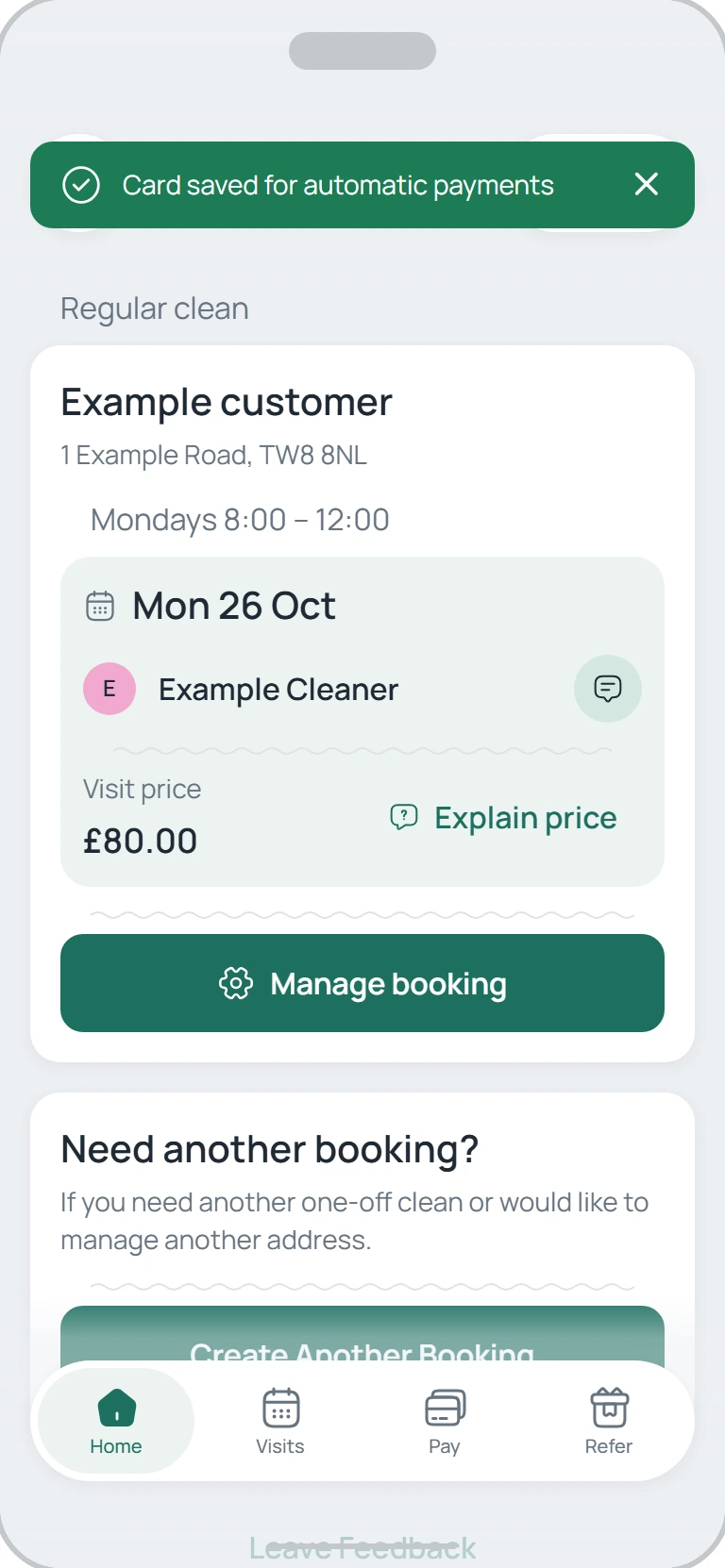
On Home, look for the green Card saved for automatic payments message above your booking.